
SolarEdge Inverter Lights Explained: What the Red, Green and Blue LEDs Mean

On this page
- Start with the mySolarEdge app
- Which SolarEdge inverter do you have?
- Newer SolarEdge inverters: the three LEDs
- SolarEdge inverters with a screen (older and HD-Wave)
- The ZigBee gateway (some older systems)
- Getting an offline SolarEdge inverter back online
- When it’s an optimizer, not the inverter
- When it’s the inverter itself
- Getting help
SolarEdge monitoring down? Your inverter can tell you whether the system is producing, whether it’s talking to the monitoring app, and whether something is wrong.
This guide covers what each light means, which combinations are normal, and when to call us for servicing. It’s a companion to our broader guide on how to check whether your solar system is working, and to our Enphase gateway lights guide if you have microinverters instead.
Start with the mySolarEdge app
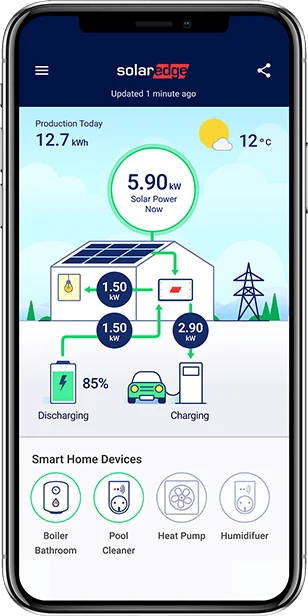
If the app is working, it’s your best source of information. The mySolarEdge app shows today’s production, the system status, and every panel individually, so it will usually tell you exactly where a problem is. Check it first.
The inverter lights are for when the app can’t help: you never got access to it, your installer is out of business, or it says the system is offline and you can’t tell whether it has stopped producing or just lost its internet connection. The LEDs answer that question at the inverter, with no app and no internet required.
Which SolarEdge inverter do you have?
SolarEdge has made a few generations of residential inverters. They have different lights & controls:
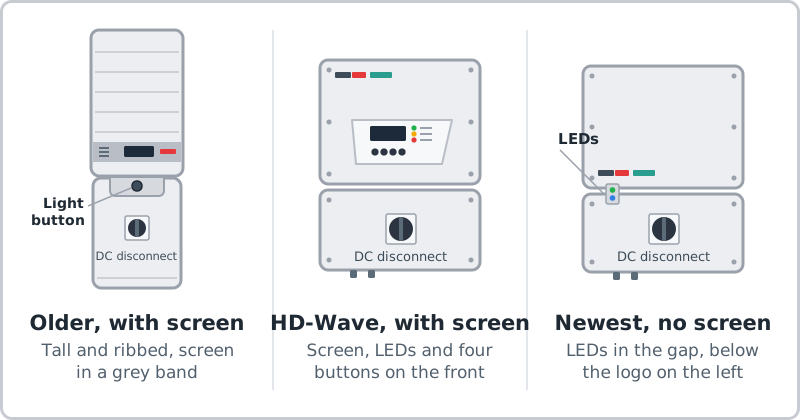
- Older inverters (with a screen). A tall, narrow box with a ribbed cover and a grey band across it holding a small LCD screen and three LEDs, and an ON/OFF switch and a round “LCD light” button on the bottom. The LEDs are green, yellow and red. There is no blue light.
- HD-Wave inverters with a screen. Two boxes stacked: the inverter on top, and a wiring box below with a large rotary knob. The screen is on the front of the top box, with four buttons below it and three LEDs (Power, Comm., Fault) beside it. Same green, yellow and red LEDs, and no blue light.
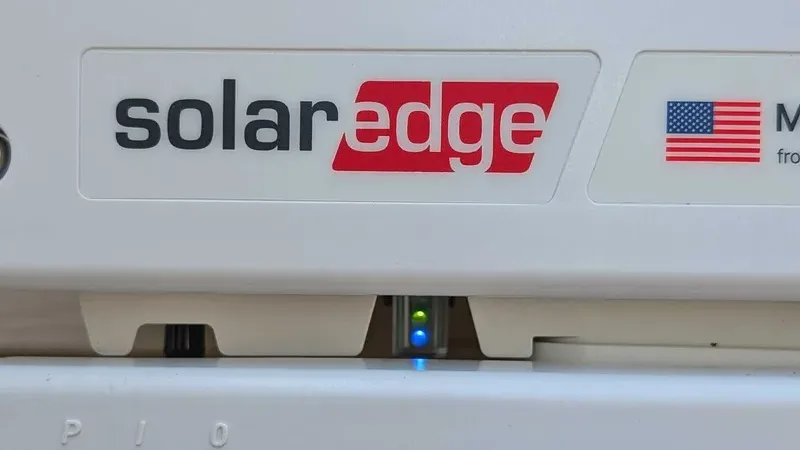
- Newest inverters (no screen). The same two-box shape as the HD-Wave, with a plain front and the logo at the bottom left of the top box. The three small LEDs sit in the gap between the two boxes, just below the logo, and there’s a red switch underneath marked P 1 0. These are set up with a phone app called SetApp. Most SolarEdge systems installed in the last several years are this type.
All three have a DC disconnect, the black rotary knob on the box below the inverter. It should be turned to ON. The two screen generations work the same way, so we cover them together below. Either way, the inverter is usually on an outside wall near your electric meter, or in the garage or basement.
Newer SolarEdge inverters: the three LEDs
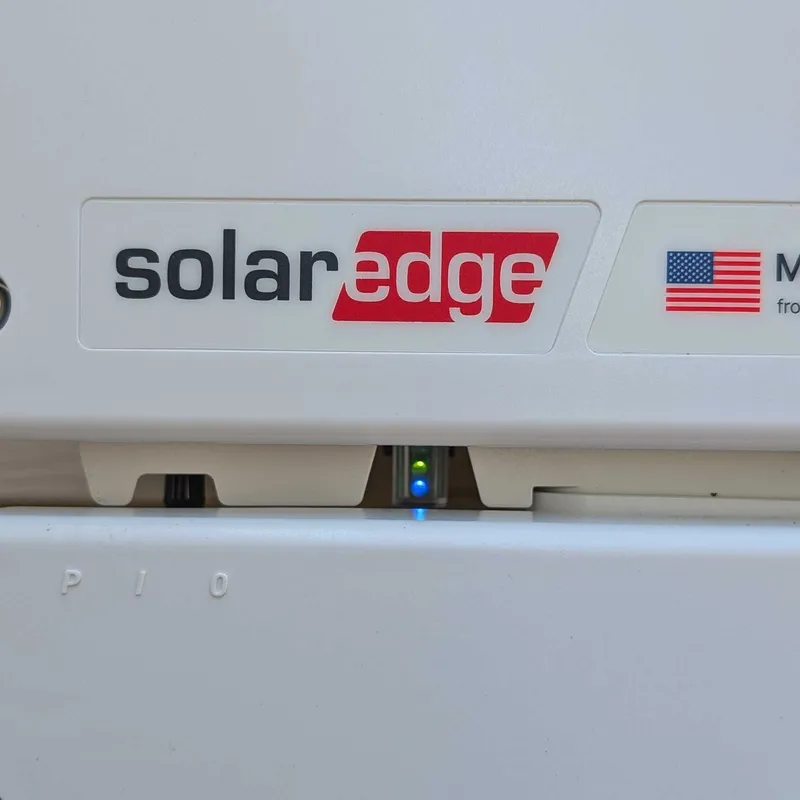
The LEDs sit in a small window in the gap between the inverter and the wiring box below it, about a fifth of the way in from the left, just below the logo. From top to bottom: red, green, blue. The P/1/0 switch is the red toggle underneath, with P 1 0 molded into the cover above it. It should always be on 1.
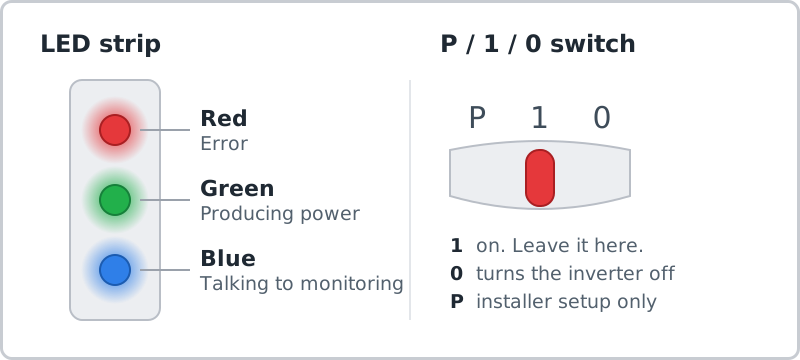
Green: production.
- Solid: the system is producing power. No action needed.
- Blinking: the inverter has AC power but isn’t producing. See below.
- Flickering (a quick, irregular flash): night mode. Normal after sunset and in very low light.
- Off, with the other lights off too: the inverter has no AC power. Check the breaker and AC disconnect.
Blue: monitoring.
- Solid: the inverter is connected to SolarEdge monitoring. No action needed.
- Off: no connection to monitoring. The app will say offline, but the inverter may still be producing (check the green).
Red: error.
- On: the inverter has detected an error. Red can show up with any combination of the other two lights.
- Off: no errors.
The normal states
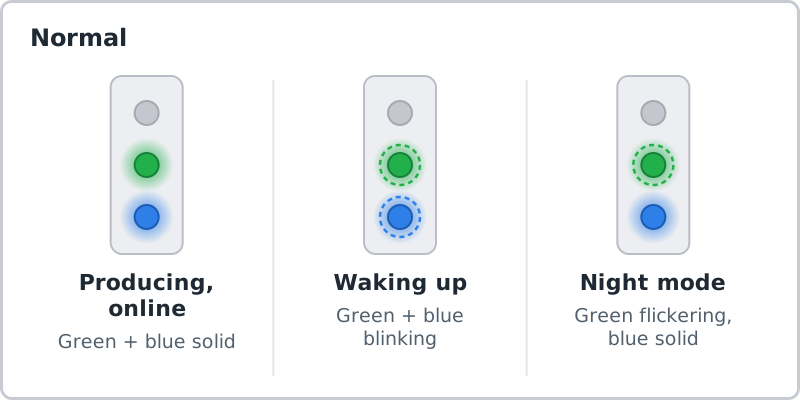
Green and blue both solid. Producing and online. This is what you want to see in daylight.
Green and blue both blinking. The inverter is waking up. It checks the grid voltage and frequency for a few minutes before it starts producing, typically three to five minutes. You’ll see this in the morning, and after the power comes back from an outage. If it’s still blinking after 15 minutes in daylight, see “stuck in a restart loop” below.
Green flickering, blue solid. Night mode. The inverter is online and waiting for the sun.
Common combinations of SolarEdge LEDs
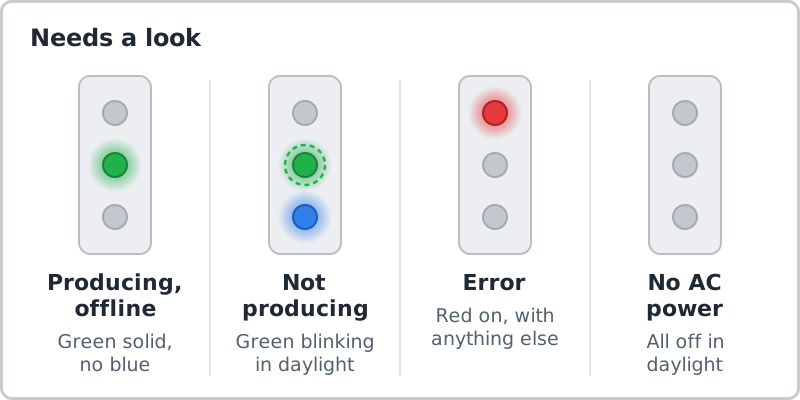
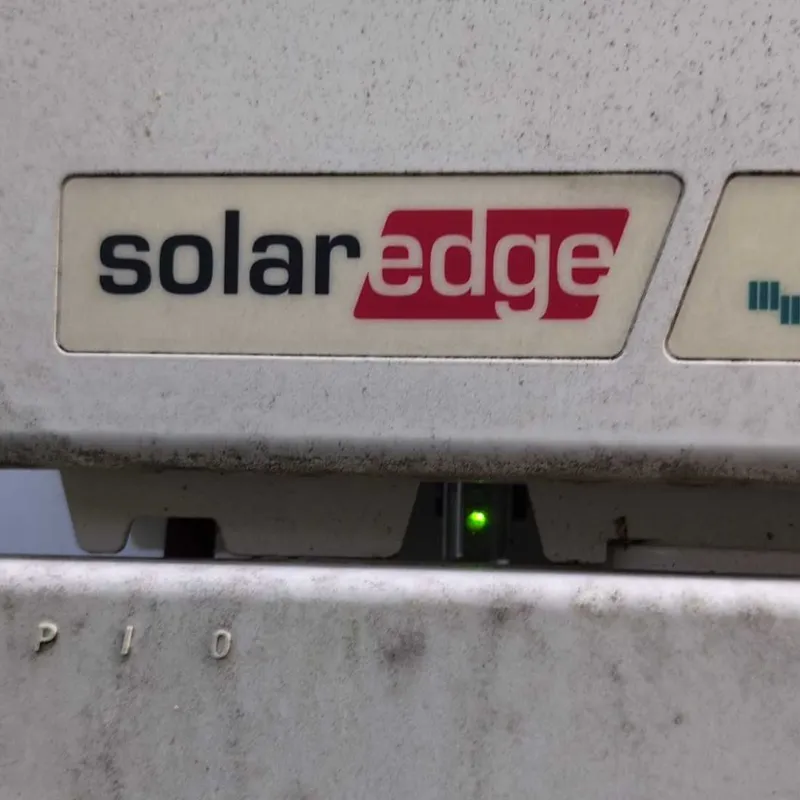
Green solid, no blue. The system is producing, but the inverter has lost its connection to SolarEdge. Your app will say offline or show a stale date, but you’re not losing any power. New internet provider? Router down? Check connections between inverter, zigbee, and try rebooting the inverter.
Green blinking in full daylight, after more than a few minutes. The inverter has AC power but isn’t producing. First check the switch underneath: if it’s on 0, the inverter is off. Move it to 1. If the switch is already on 1, the inverter isn’t getting usable power from the roof. That usually points at the optimizers (they need to be paired to the inverter before they’ll produce), a DC wiring fault, or the DC disconnect (the rotary knob below the inverter) being turned off.
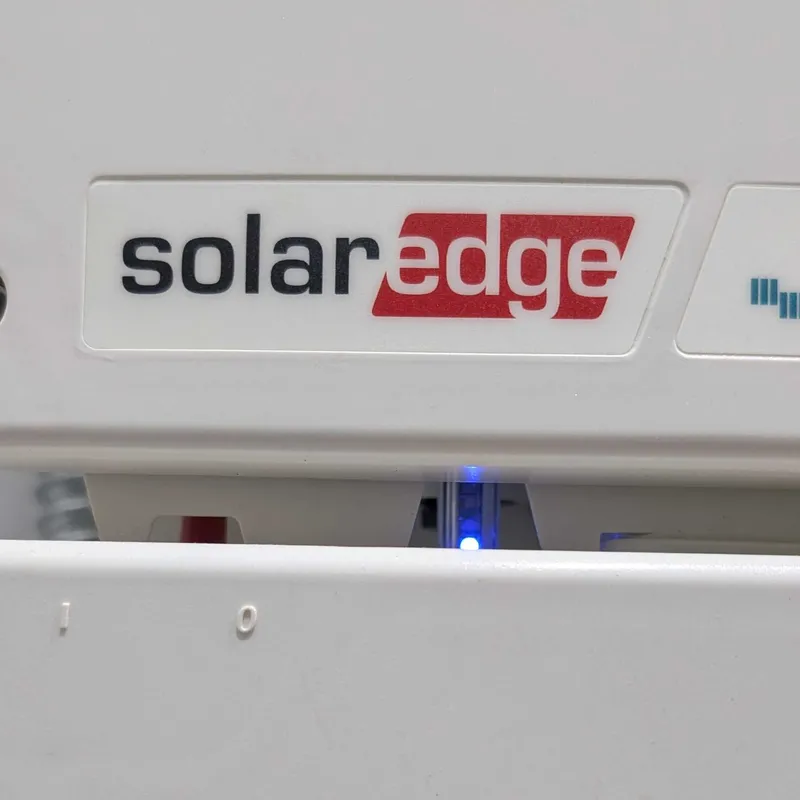
Green and blue blinking that never settles: stuck in a restart loop. Some inverter faults don’t turn on the red light. The inverter boots up (green and blue blinking), tries to produce, hits the error, and restarts, over and over. If you only glance at it, it looks like it’s just waking up, so no red light doesn’t mean everything is fine. Give it 15 minutes in daylight: a healthy inverter settles to solid green and blue. If it keeps cycling, the inverter has likely failed and needs a service call.
Red on. The inverter has detected an error. Note whether green is also on; if it is, the system may still be producing through the error. Try one restart: move the switch to 0, wait five minutes, then back to 1. If the red light comes back, it’s a service call. The exact error code shows in the mySolarEdge app and in SetApp, which your installer will use to diagnose it.
All three off in daylight. The inverter has no AC power. Check the solar breaker in your main panel and the AC disconnect near the meter. Our five-minute check walks through both.
Less common patterns
- All three lights solid: the inverter is being configured or is rebooting. Wait for it to finish.
- Lights blinking one after another: a firmware update is in progress. Do not switch the inverter off.
- All three blinking together: the inverter is pairing with its optimizers. Wait for it to finish.
- Red and green blinking together: after the inverter is switched off, this means the DC voltage from the roof hasn’t dropped to a safe level yet. Wait a few minutes. If the switch is on 1 and you see this, it’s a fault on a component called the PID rectifier; call your installer.
The P/1/0 switch
- 1: on. This is where the switch should be.
- 0: turns the inverter off.
- P: used by installers for commissioning. Homeowners don’t need it.
SolarEdge inverters with a screen (older and HD-Wave)
Both screen generations work differently from the newest inverters, and confusing them is common. There’s no blue light. The three LEDs next to the screen are green, yellow and red; on HD-Wave models they’re labeled Power, Comm. and Fault. The lights and the screens are the same on both. The difference is the buttons you use to read the screen.
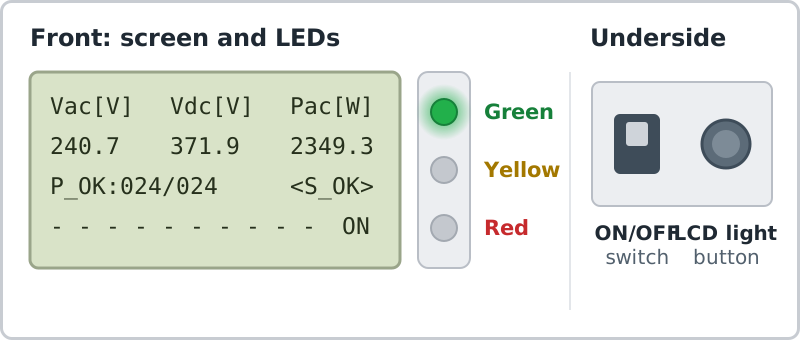
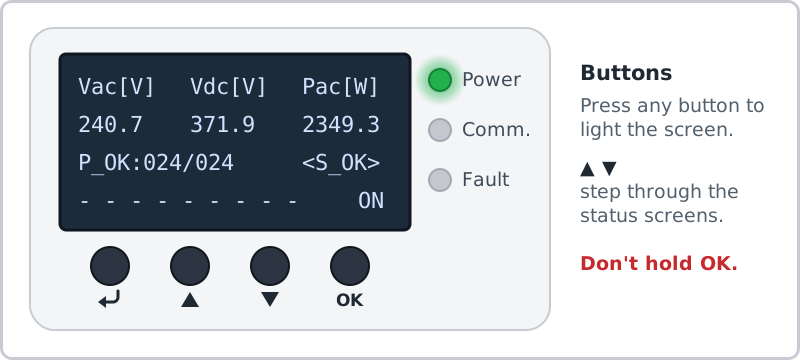
Green (Power): production.
- On: producing power.
- Blinking: standby. The inverter is waking up and will start producing once its working voltage is reached.
- Off: not producing. Normal at night, and also what you’ll see if the ON/OFF switch is off or there’s an error.
Yellow (Comm.): optimizer communication. It blinks briefly each time the inverter receives data from one of the optimizers on your roof. An occasional yellow blink is normal. It also blinks while the inverter is shutting down.
Red (Fault): error.
- On: there’s an error. The screen will show the error code.
- Blinking: the inverter is shutting down.
All three LEDs on at once means the inverter is in setup mode.
Reading the screen
The screen is normally dark. To light it up for about 30 seconds:
- Older inverters: press the round LCD light button on the bottom of the inverter once. Each additional press steps to the next status screen.
- HD-Wave with a screen: press any of the four buttons below the screen (they beep). Use the up and down arrows to step through the status screens.
The first screen is the one that matters:
- Pac [W]: the power it’s producing right now, in watts. In daylight this should be well above zero and move around as clouds pass.
- P_OK: 024/024: the first number is how many optimizers have reported in over the last two hours; the second is how many are paired to the inverter. The two numbers should match. A reading like 021/024 means three optimizers aren’t reporting, so three panels or optimizers may need servicing or replacing. The per-panel view in the app will show which ones.
- S_OK: the inverter is connected to SolarEdge monitoring. If S_OK is missing, the app will say offline.
- ON / OFF: the position of the ON/OFF switch. It should say ON.
The other screens include daily, monthly and lifetime energy, and a communication screen that shows how the inverter connects to the internet (LAN, cellular or ZigBee) and whether that connection is working.
Tap the buttons. Don’t hold them down. On the older inverters, holding the LCD light button for about 10 seconds starts optimizer pairing and opens the installer setup menu. On HD-Wave models, holding OK does the same.
Error codes on the screen
When the red LED is on, the screen shows an error code and a line or two of description. SolarEdge error codes look like 3x9B or 18x1C: a number, an “x,” and more characters. The same code shows in the mySolarEdge app’s device view.
Most of these need an installer: ground faults, arc faults, isolation errors, and internal faults. Grid voltage and frequency errors are the exception; they often clear on their own once the grid settles down after a storm or outage. Take a photo of the screen either way. The code is the most useful thing you can send us.
The ZigBee gateway (some older systems)
Some older SolarEdge systems don’t connect to the internet directly. Instead, a small ZigBee card in the inverter talks wirelessly to a ZigBee home gateway, a small box plugged in near your router. If your system uses one, the gateway has its own lights:
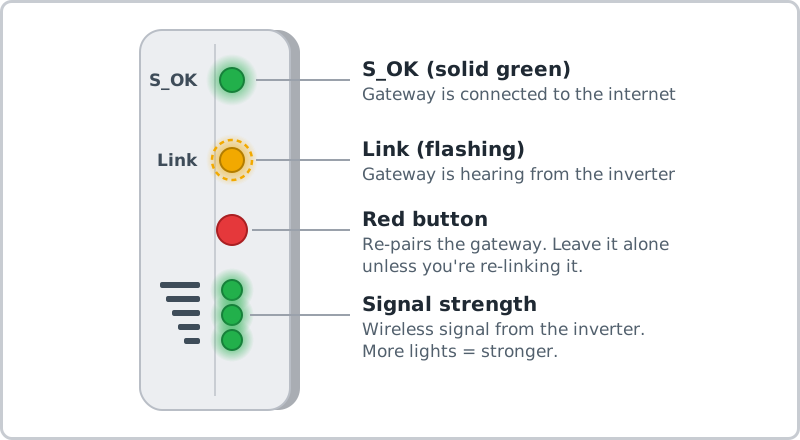
- S_OK (solid): the gateway is connected to the internet.
- Link (flashing): the gateway is hearing from the inverter. The flash rate varies with the number of inverters.
- Signal strength: how strong the wireless link to the inverter is. More lights is better.
S_OK on, Link not flashing: the inverter isn’t reaching the gateway. The usual fix is moving the gateway to an outlet closer to the inverter, with a powerline or Wi‑Fi bridge back to the router if needed. Distance, walls, and even a big TV in the path can weaken the signal.
S_OK off: the gateway can’t reach the internet. Check its cable to the router and the router itself.
The red button re-links the gateway to the inverter: hold it until all the lights come on, then let go right away. Holding it longer puts the gateway into a diagnostic mode and can make it forget the inverter. If that doesn’t get the Link light flashing, it needs a service visit.
Getting an offline SolarEdge inverter back online
For the “no blue light” or “no S_OK” case, the fix depends on how your inverter connects.
Wi‑Fi. The most common cause is a new router or a changed Wi‑Fi password. Newer inverters can be reconnected from the mySolarEdge app if your account has that option; you need to be standing near the inverter. If yours doesn’t, your installer can do it in a few minutes with SetApp. A weak Wi‑Fi signal at the inverter causes repeated dropouts; a Wi‑Fi extender on that side of the house usually solves it.
Ethernet. Most older SolarEdge inverters use a network cable. Check that it’s seated at both ends, and that the router port it’s plugged into is live. If you’ve replaced the router, the cable needs to go into the new one.
Cellular. Some systems use a cellular modem inside the inverter. Older SolarEdge cellular kits ran on 3G networks that were shut down in 2022, and many went permanently offline at that point. If your monitoring stopped around then and never came back, that’s likely why. The modem needs replacing, or the inverter can be switched to Wi‑Fi or Ethernet.
ZigBee. See the gateway section above.
Once the blue LED (or S_OK) comes back, give the app a few hours to catch up.
When it’s an optimizer, not the inverter
SolarEdge systems have an optimizer under each panel, and a failed one shows up in the app’s layout view as one panel at zero while its neighbors are normal. On an inverter with a screen, it also shows as a P_OK count lower than the number of panels you have.
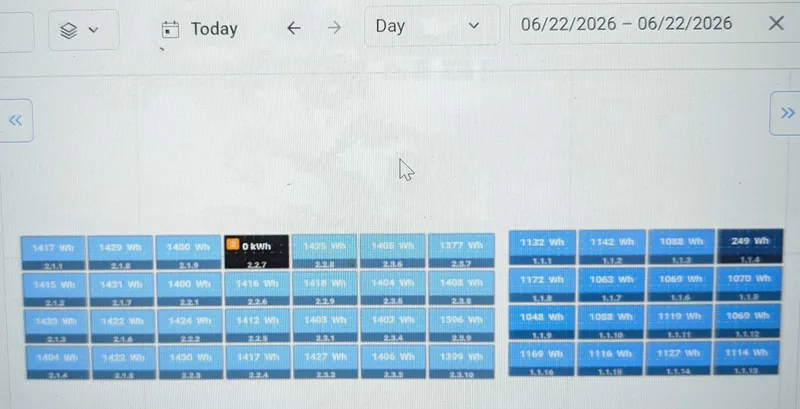
Monitoring data has a delay, so don’t judge from today’s view alone. Switch to the weekly and monthly views and confirm the panel is persistently at zero before treating it as a failure.
SolarEdge optimizers carry a 25-year warranty. The warranty covers the replacement part, but not the labor to get on the roof, lift the panel and swap the optimizer, unless your installer’s own labor warranty is still in effect. A new optimizer also has to be paired to the inverter, which is an installer step.
When it’s the inverter itself
A SolarEdge inverter is the single point of failure in the system. If it’s down, every panel is down. Inverters are also the part most likely to fail before the panels do: the standard SolarEdge inverter warranty is 12 years, against 25 for the optimizers. A red light that comes back after a restart, a screen showing the same error day after day, or an inverter that’s completely dark with the breaker and AC disconnect on usually means a repair or replacement.
Many of the screen models in Virginia are now past their 12-year warranty. A failed one can usually be replaced with a current SolarEdge inverter that works with the optimizers already on your roof, so the panels don’t need to come off.
Getting help
If you’re within about 1.5 hours of Charlottesville and the steps above didn’t get you to a solid green light, our solar repair team works on SolarEdge systems from any installer, including ones whose original installer is gone. As a Charlottesville-based solar installer, we’ve been installing and servicing systems here since 2015. The most useful things you can send with a service request are a photo of the inverter lights (or the screen) in daylight and a screenshot of the layout view in the app. Between the two, we can usually tell whether it’s a Wi‑Fi problem, an optimizer, or the inverter before we schedule a visit.
Related Posts
How to clean solar panels
Learn how to clean your solar panels, to get the most out of your solar. See when to clean them, how to do it, and how to avoid mistakes.
Do Solar Panels Work in Virginia Winters?
Learn how solar panels perform in Virginia winters, and how cold temperatures actually increases solar efficiency, if not overall production.

Do Solar Home Batteries Make Sense in Virginia?
Do solar home batteries make sense in Virginia? Are batteries + solar worth it? Learn more and see what's new in energy storage for 2025.