
Is My Solar System Working? How to Check in 5 Minutes

On this page
Did you get a high electric bill? Want to know if your solar is producing properly?
Here’s the five-minute check our solar service team runs on every call, in order. You can do all of it from your phone and your driveway.
Step 1: Open the monitoring app
Every modern solar system reports to an app. Which one depends on your inverter:
- Enphase microinverters: the Enphase App (older systems called it Enlighten)
- SolarEdge: mySolarEdge
- Fronius: Solar.web
- SMA: Sunny Portal or the SMA Energy app
If you’ve never set it up, your installer should have sent an invitation. If they’re no longer around, the manufacturer can usually transfer the system to you with proof of address. Monitoring is the very first thing to check, since it provides health data on your system.
Look for two things. First, today’s production: on a sunny day it should be a curve that starts after sunrise and peaks around midday. Second, the system status. “Normal” or a green check is what you want.
The status that catches people out is offline or not reporting. It doesn’t necessarily mean the panels stopped producing. It usually means the inverter or gateway lost its internet connection, which happens after a router swap, a new Wi‑Fi password, or a power outage.
But it does mean that real failures could go unnoticed. Of the “my bill went up” calls we take, a large share come down to a system that quietly went offline, then developed a real problem that nobody could see.
If your app is offline, reconnect it before anything else. Enphase owners can read how the gateway lights work and how to get it back online. For SolarEdge, Fronius and SMA the fix is usually reconnecting Wi‑Fi through the app or the inverter’s own setup mode.
Step 2: Compare this month to the same month last year
Solar production swings a lot by season, so comparing June to October tells you nothing. Compare the same month a year ago. Most apps have a month or year view that makes this a two-tap job.
A 10 to 20 percent difference is weather. A cloudy spring can take that much off a month. A 30 percent drop, or a month that is suddenly half of last year, is a problem: a dead optimizer or microinverter, shade from a tree that grew, or a string that stopped producing.
If you don’t have a year of history yet, here’s a rough benchmark for a decently sited south-facing roof near Charlottesville, in kWh per month for every 1 kW of panels installed:
| Month | kWh per kW | Month | kWh per kW |
|---|---|---|---|
| January | 80 | July | 145 |
| February | 95 | August | 135 |
| March | 120 | September | 120 |
| April | 135 | October | 105 |
| May | 140 | November | 80 |
| June | 145 | December | 70 |
So a 10 kW system should see somewhere around 1,400 kWh in June and 700 kWh in December. East- or west-facing roofs and roofs with shade run lower, often by 15 to 25 percent. If you’re well below these numbers for several months running, it may be worth looking into.
Step 3: Look at the inverter lights
If the app is offline, or you want to confirm what it’s telling you, walk to the inverter. It’s usually on an outside wall near the meter, or in the garage or basement. Each brand uses lights a little differently.
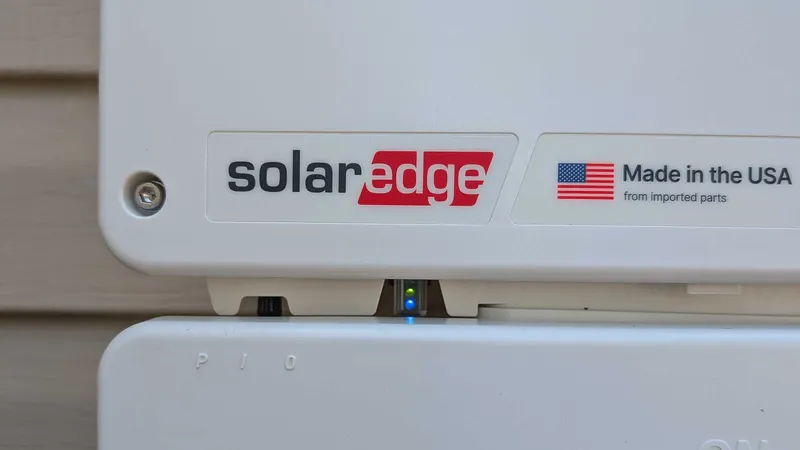
SolarEdge. Newer SolarEdge inverters have a small LED strip on the underside, below the logo. Green means producing, blue means it’s talking to the monitoring platform, red means a fault. You want to see both green and blue in daylight.
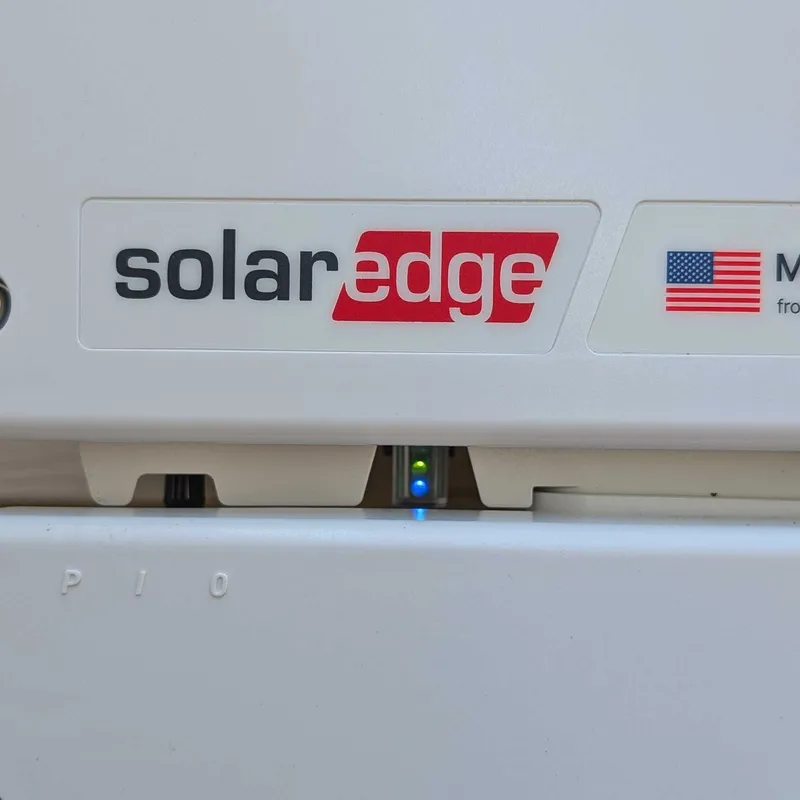
Green with no blue means the inverter is producing but your app won’t show it. The system is fine; the connection isn’t.
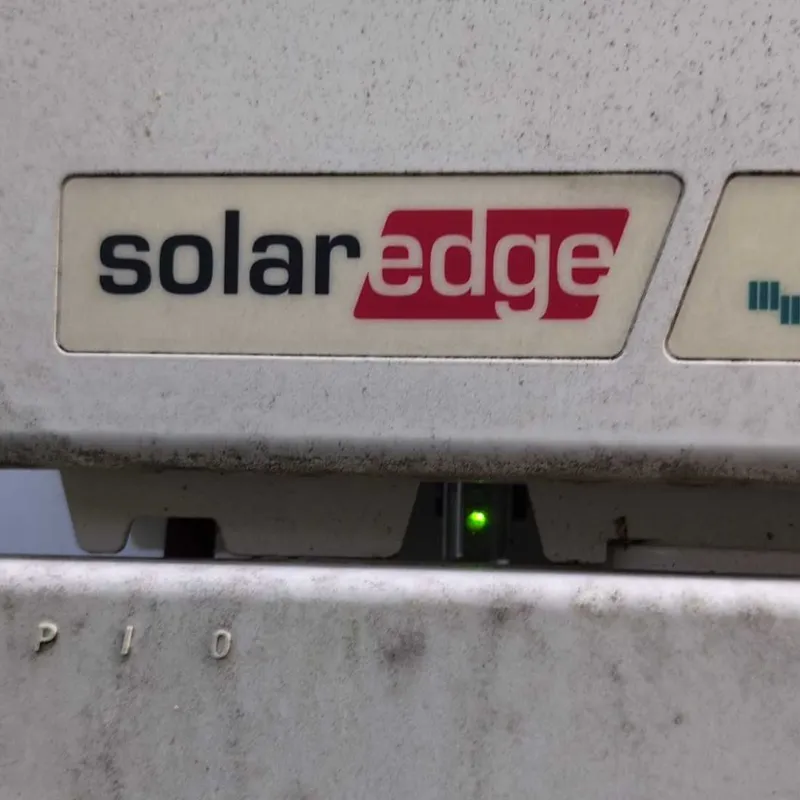
Blue with no green in the middle of the day is the one to worry about. The inverter is online and reporting, but it isn’t producing. That’s typically a fault on the inverter itself or the DC side, and it’s a service call.
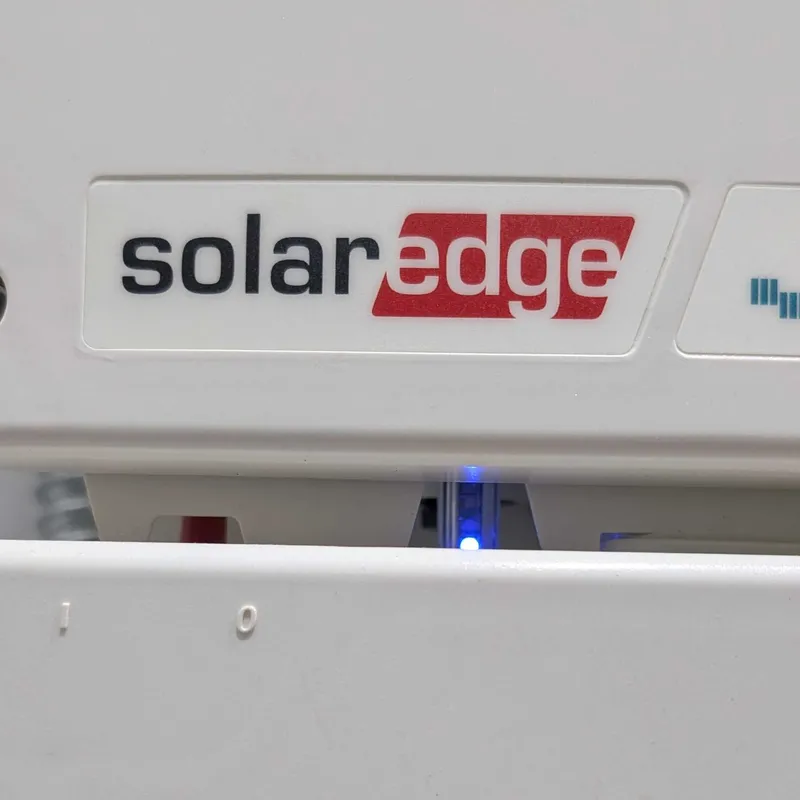
Older SolarEdge units with a screen show the same information as text. “S_OK” on the display means it’s connected to the server, and the power reading should be above zero in daylight.
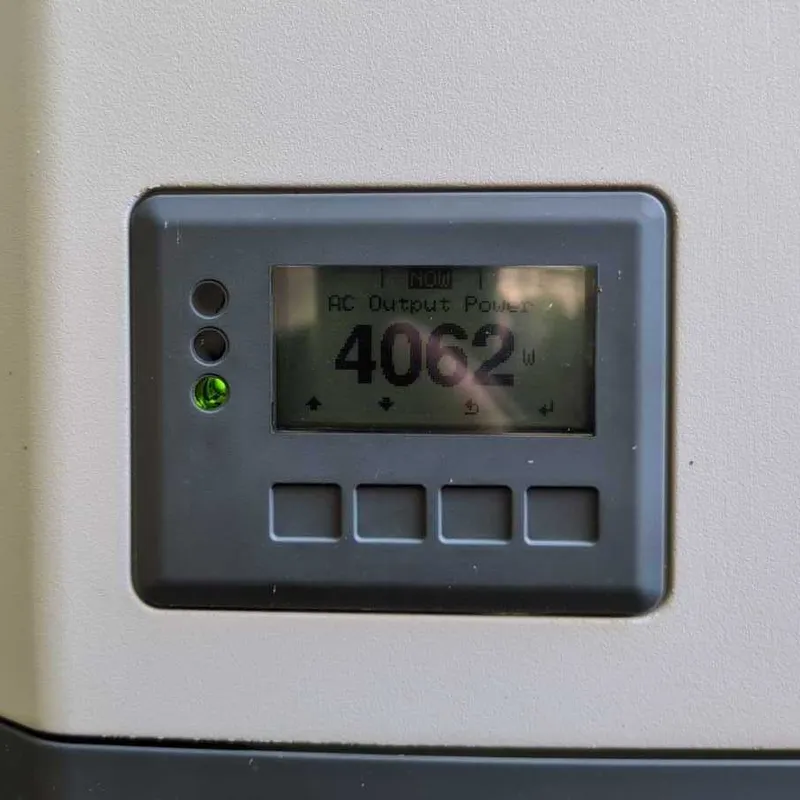
Fronius. Fronius inverters have a screen and a status light. Green means it’s operating normally, orange means it’s starting up or in standby, and red means a fault with a state code on the screen. Tap through the display to “AC Output Power” and you’ll see what it’s producing right now. If there is a constantly changing Wattage number shown, then you are producing power.
It’s very uncommon for inverters to gradually degrade, they tend to work, or fail outright. If you suspect a partial loss of energy, a tech may have to look deeper into the monitoring data, or test at the string-level.
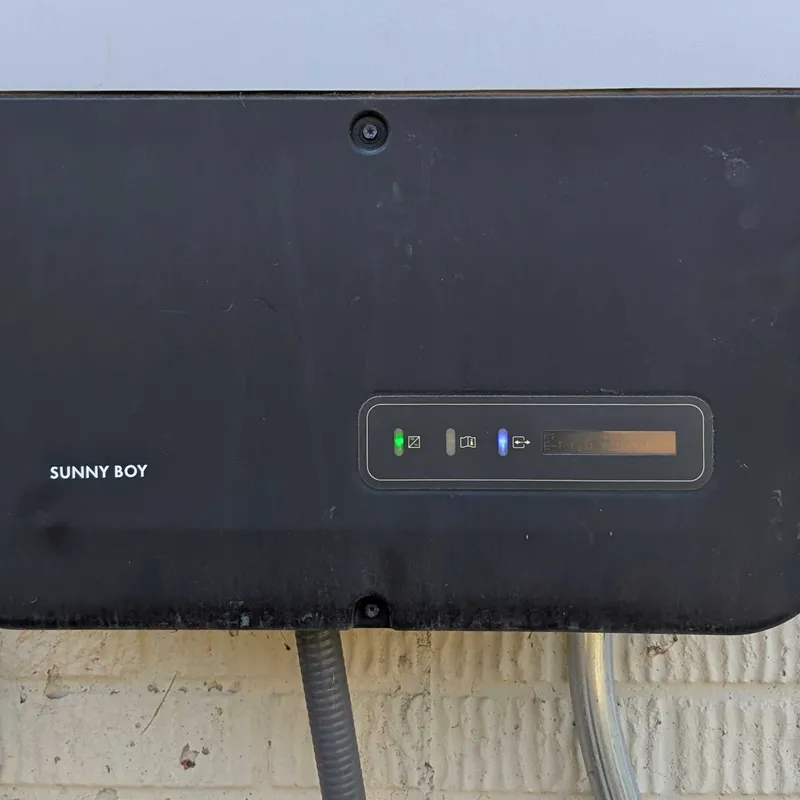
SMA Sunny Boy. SMA uses three lights on the front panel. Green means it’s feeding power to the grid, blue means its wireless connection is active, and red means a fault. A flashing green at dawn is normal; it’s waiting for enough sun to start. They also can gently pulse green, if they are not at full power (i.e. in the morning or afternoon).
The screen on a Sunny Boy is normally dark. Tap pretty hard on the case just above the screen with a knuckle and it wakes up; keep tapping to cycle through the screens. Look for the one that reads something like “P: 503 W.” That’s current power production. If it shows a wattage number in daylight, and that number moves around as clouds pass, the inverter is making power.
Enphase. With microinverters there’s nothing to read on the roof. The lights that matter are on the gateway (the Envoy or IQ Gateway), which lives in the combiner box near your meter or in a small enclosure indoors.
Four LEDs tell you whether it’s connected to the cloud, whether the microinverters are producing, and whether they’re reporting in. We wrote a separate guide to the Enphase gateway lights because there’s more to them than one paragraph can cover.
Step 4: Check the solar breaker & AC Disconnect
If the inverter is dark in the middle of a sunny day, or the screen is blank, the next stop is the breaker. Look in your main electrical panel, and any sub-panel or exterior disconnect near the meter, for a double-pole breaker labeled “solar,” “PV,” or “inverter.” It should be fully on, in line with the others.
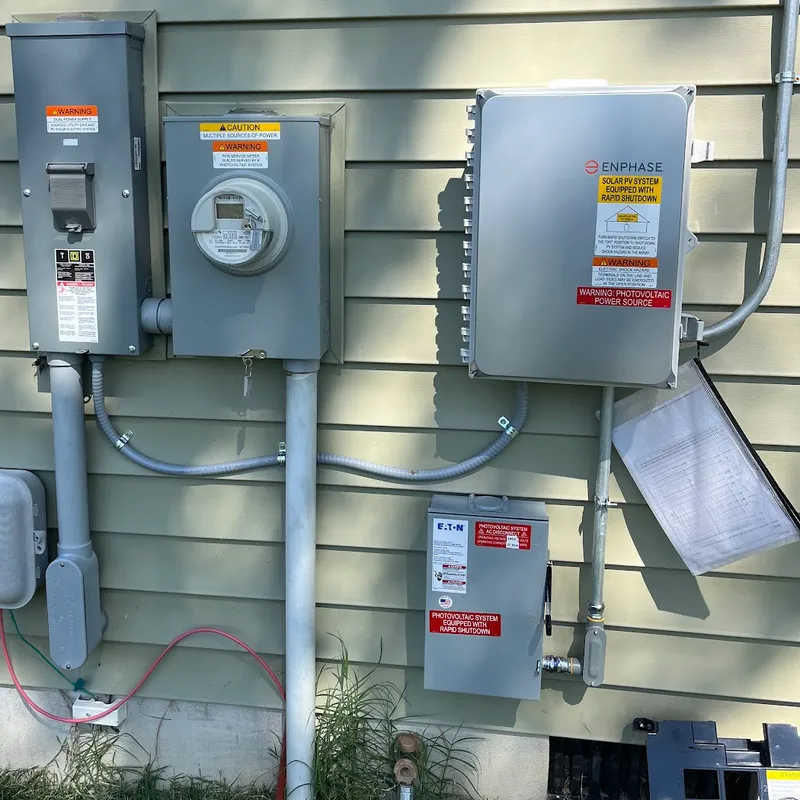
A tripped breaker often sits in the middle rather than on OFF. Flip it fully off, then back on. The inverter will take a few minutes to restart; that’s normal.
Most inverters also restart on their own after a utility outage, so if yours stays dark after the power comes back, the breaker is the first thing to check. There’s more on that in what happens to solar homes when the power goes out.
If the breaker trips again, leave it off and call someone. A breaker that keeps tripping is a real fault, not a nuisance.
Check the AC disconnect too. Most systems also have an AC disconnect: a grey metal box with a handle on the side, mounted near the meter and labeled “PV system AC disconnect.” The handle needs to be in the ON position (usually up). It’s easy for it to get switched off by an electrician, a roofer, or a utility worker and never switched back on.
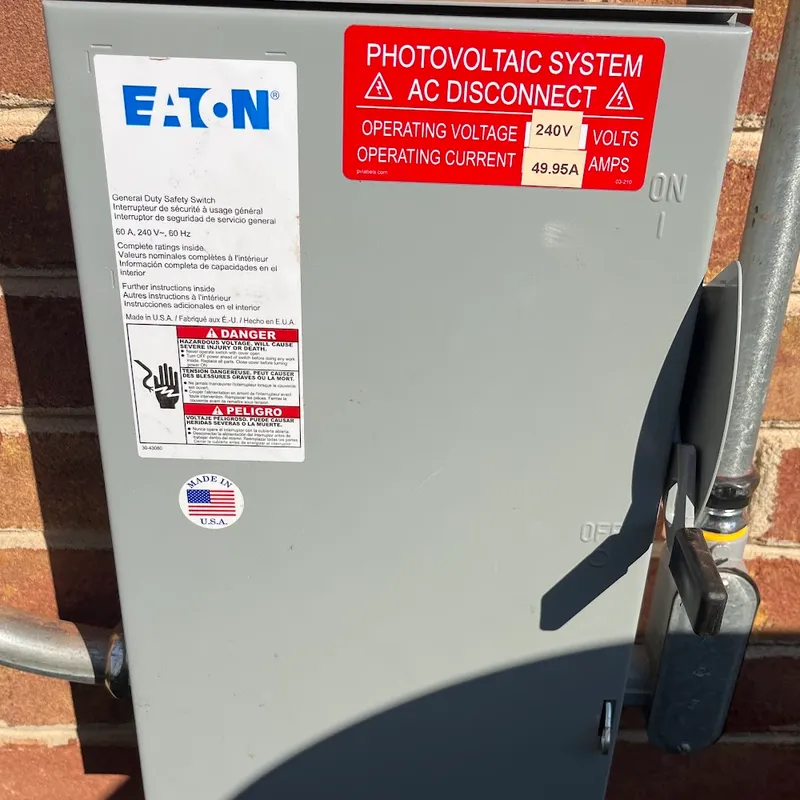
Some systems, usually larger ones, don’t have a solar breaker at all. Instead, there are fuses inside the AC disconnect. If that’s your setup, make sure the disconnect handle is ON, and leave it at that.
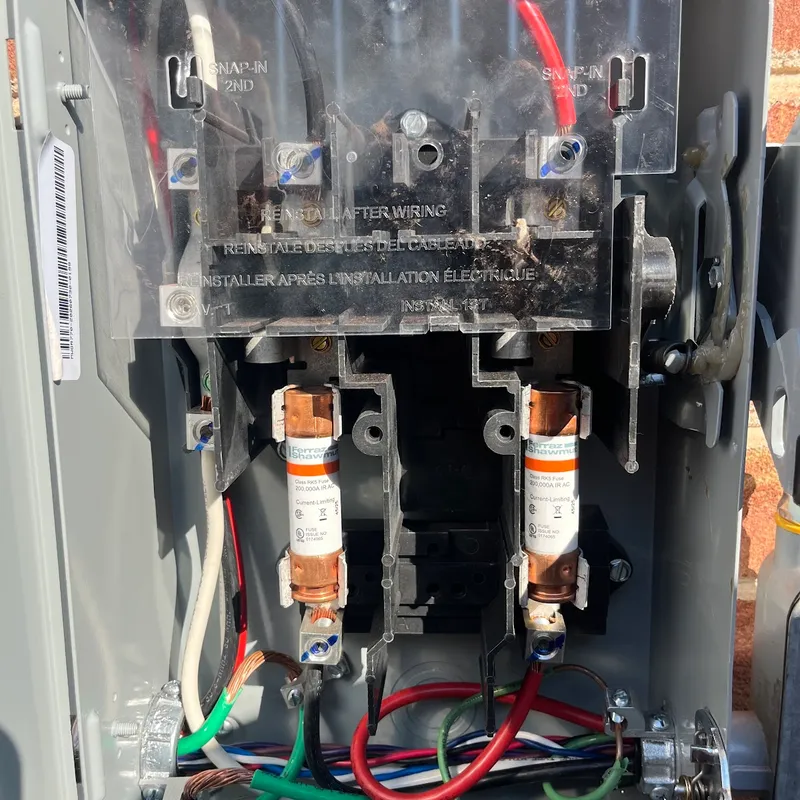
Do not open the disconnect or pull the fuses unless you’re electrically trained. Many of these are connected with line-side taps, which means there’s usually no way to shut off voltage to the entire enclosure. The terminals at the top are live whether the handle is on or off.
If the breaker is on, the AC disconnect is on, and the inverter lights still don’t come on, you’ve done what you can from the ground. That’s the point to contact us for servicing.
Step 5: Look at the per-panel view
If the system is online and producing but the monthly number is low, open the layout or per-panel view in your app. Systems with Enphase microinverters or SolarEdge optimizers report each panel separately, and a failed component shows up as one panel sitting at zero while its neighbors are fine.
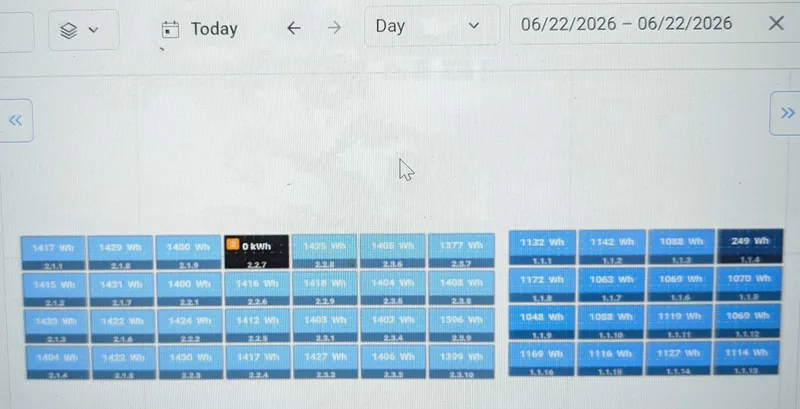
Monitoring data has a delay, so don’t judge from today’s view alone. If a panel only looks bad on today’s data, it’s likely a reporting lag, not a production problem. Check the weekly and monthly views and confirm the gap is persistent.
One panel at zero is a single optimizer or microinverter, which is the most common repair we do and is usually covered by the manufacturer’s parts warranty.
Several panels at zero in a row, or a whole section, points at wiring, a rapid-shutdown fault, or critter damage. A whole system at a fraction of normal with every panel reporting evenly is usually shade or soiling, not a failure.
When to call
You’ve done the five steps. Here’s where that leaves you:
- App online, production matches last year: your solar is working. The bill is something else: a rate change, more usage, or a billing cycle that didn’t line up. Compare kWh on the bill, not dollars.
- App offline, inverter lights green: the system is fine, but reconnect the monitoring so you can see the next problem when it happens.
- Inverter dark with the breaker and AC disconnect both on, or inverter red, or production well below last year, or one or more panels at zero: that’s a repair.
If you’re within about 1.5 hours of Charlottesville, our solar repair team handles all of these, including systems we didn’t install and systems whose installer is no longer in business. We’ve been installing and servicing solar in central Virginia since 2015.
Send us a photo of the inverter lights and a screenshot of the app when you request service; we can often tell you what’s wrong before anyone drives out. For what the common repairs cost, see our guide to solar maintenance costs.
And put a reminder in your calendar to open the monitoring app on the first of every month. It’s the cheapest solar maintenance there is.
Related Posts
The Best Tesla Powerwall 3 Alternatives in 2026
Looking for an alternative to the Tesla Powerwall 3? Here are the best options for 2026, with full comparisons and pros & cons of each solar battery.
Solar Myths Debunked: “0% Financing”
“0% financing” on solar often hides dealer fees up to 35% of project cost — far more than a traditional solar loan. Here's how to spot and avoid it.

What is critter-guard, and should I have it installed?
Critter-guard keeps squirrels and pigeons from nesting under solar panels in Virginia homes. Learn when it's needed and how to fix existing critter damage.