
Enphase Gateway (Envoy) Lights Explained: What Each LED Means and What to Do

On this page
If you have Enphase microinverters, there’s an easy way to see what’s going on with your solar: Enphase has called it the Envoy, the Envoy‑S, and now the IQ Gateway, but it’s the same thing, and gives you an easy way to see if your system is working. The Envoy handles communication between your microinverters and the cloud, which allows you to monitor your system on the Enphase App.
The Enphase Envoy has four small LEDs, and they can let you know if your system is producing, if there are communication issues, and more. This guide covers what each one means, which combinations are normal, and when to call us for servicing. It’s a companion to our broader guide on how to check whether your solar system is working.
Start with the Enphase App
If the app is working, it’s your best source of information. The Enphase App (older systems called it Enlighten) shows today’s production, the system status, and every panel individually, and it will often tell you exactly which microinverter has a problem. Check it first.
The gateway lights are for when the app can’t help: you never got access to it, your installer is out of business, or it says “not reporting” and you can’t tell whether the system has stopped producing or just lost its internet connection. The LEDs answer that question at the box itself, with no app and no internet required.
Where to find your gateway
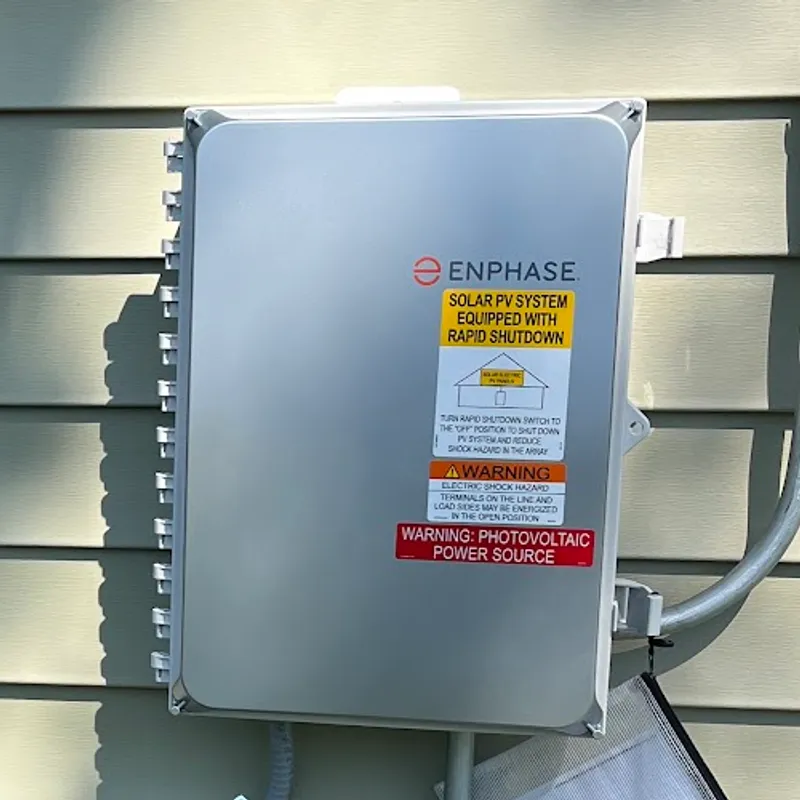
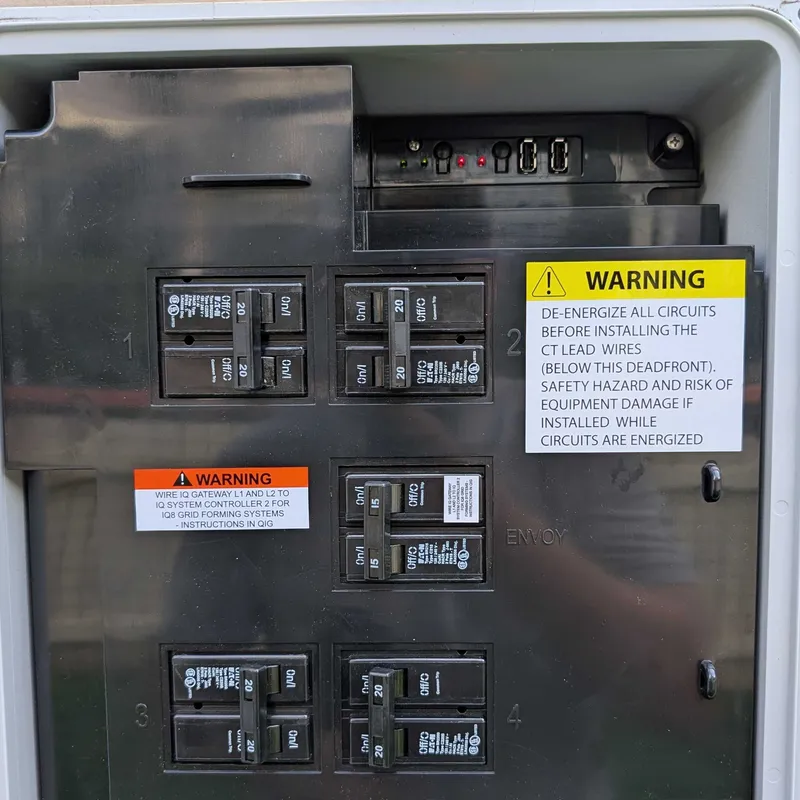
On the systems we install, the gateway usually sits inside an Enphase IQ Combiner, a grey box on the outside wall near your electric meter, next to the solar breakers. Open the cover and the LED strip is along the top edge.
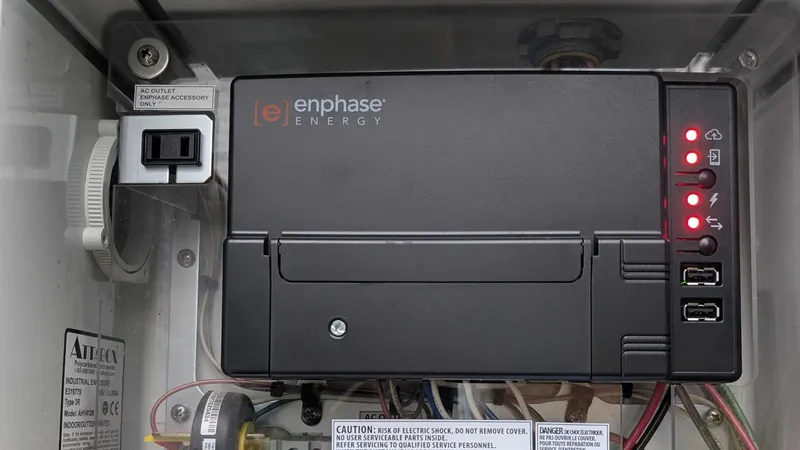
On older systems, or systems from other installers, the Envoy‑S is often a standalone black box in a separate enclosure, in the garage, or plugged into a wall outlet indoors. We occasionally install them with a stand-alone envoy on larger systems as well.
The LEDs and buttons
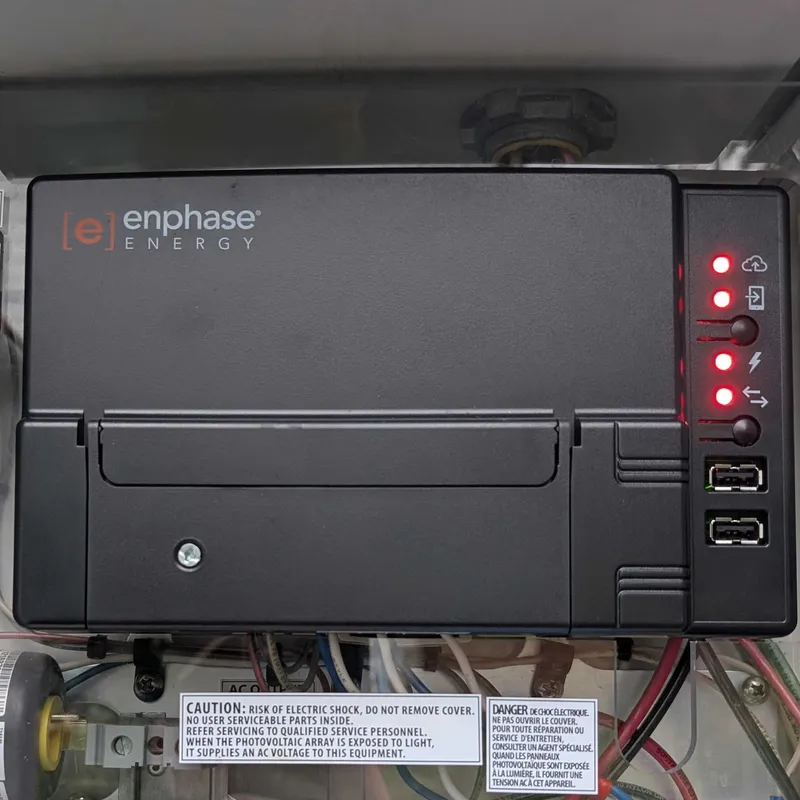
From left to right, on both the Envoy‑S and the IQ Gateway: network communications LED, AP mode LED, AP mode button, power production LED, device communication LED, device scan button, and two USB ports.
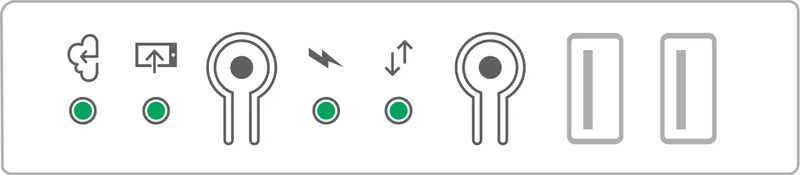
1. Network communications LED. Whether the gateway can reach the Enphase cloud.
- Solid green: connected to the Enphase cloud. No action needed.
- Flashing green: connecting to the Enphase cloud or your Wi‑Fi router. Wait 2 to 3 minutes. If it continues, check your router and internet connection.
- Amber/red: connected to your local network only, with no internet. Verify the Wi‑Fi and router connections, restart the router, then reconnect the gateway to Wi‑Fi using the Enphase App.
- Off: no network available. Make sure the router is powered on and check the Ethernet or Wi‑Fi configuration.
2. AP mode LED.
- Green: AP mode is enabled and the gateway’s own Wi‑Fi network is available.
- Off: AP mode is disabled. This is normal.
AP mode button. Starts the gateway’s wireless access point so a phone or tablet can connect directly to it. Installers use it during setup; homeowners use it to reconnect the gateway to Wi‑Fi (see below).
3. Power production LED. Whether the microinverters are making power.
- Green: all communicating microinverters are producing. No action needed.
- Flashing green: a microinverter upgrade is in progress. Do not power off the system; let the upgrade complete.
- Amber/red: at least one microinverter is not producing. Check the Enphase App to identify the issue, and contact your installer if it persists.
- Off: microinverters are not communicating. This is expected at night and in low light. If it happens during the day, check the breakers or review the system status in the Enphase App.
4. Device communication LED. Whether the microinverters are reporting to the gateway. Enphase microinverters send their data over the house wiring, so this LED is about that link, not the internet.
- Solid green: all microinverters are communicating. No action needed.
- Flashing green: a device scan is in progress. Wait for it to complete.
- Solid amber/red: at least one device is not communicating. Check the Enphase App to identify the affected devices, and contact your installer if needed.
- Off: devices are not communicating. Expected at night and in low light. If it happens during the day, check the gateway’s power and system status.
Device scan button. Starts or stops a 15-minute scan to detect microinverters over the power line. Used by an installer during installation or after a microinverter or gateway replacement.
All LEDs.
- Flashing amber/red in unison: the gateway is booting up. Wait for it to finish, and do not disconnect power.
- Flashing green sequentially: a software update is in progress. Do not power off the gateway.
The combinations we see on service calls
Network amber/red or off, production and communication green. The system is producing and every microinverter is reporting to the gateway. Only the connection to Enphase is down. Your app will say “not reporting” or show a stale date, but you’re not losing any power. This is the most common thing we find, and it’s the one you can usually fix yourself (see below).
Network green, production amber/red, communication amber/red. The gateway is online and reporting a problem: at least one microinverter has stopped producing and stopped communicating. Open the Enphase App and look at the array view; the affected unit will show grey or a warning while its neighbors are normal. That microinverter likely needs replacing.
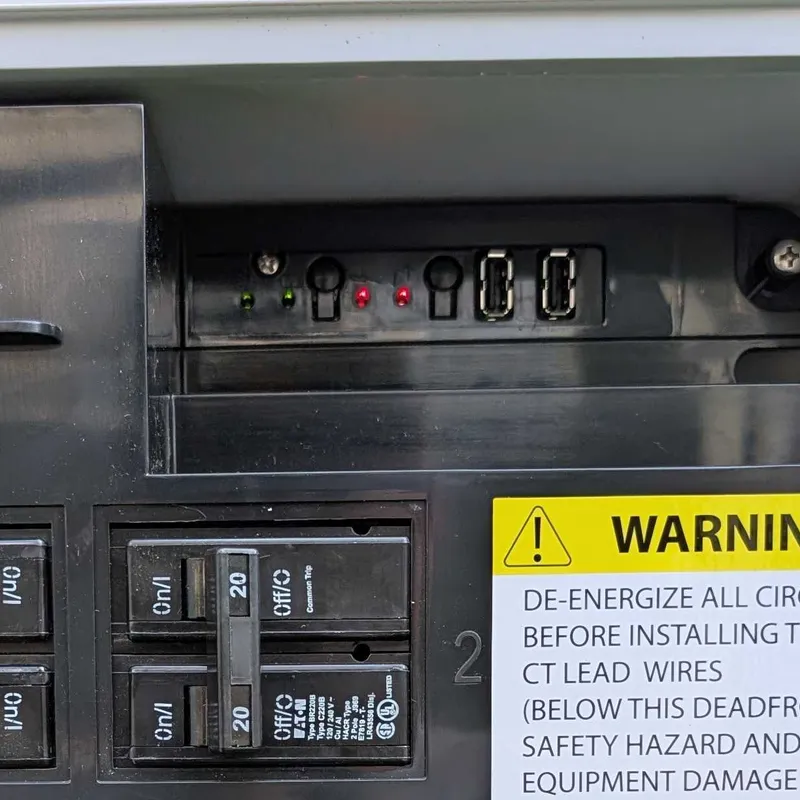
Network green, production green, communication amber/red. Everything is producing but one microinverter isn’t reporting its data. Sometimes this clears on its own after a few sunny days; if it stays red for a week, have it looked at.
All four red and staying that way. A gateway stuck in startup, or one that has failed. Try one power cycle: switch off the breaker labeled “Envoy” or “Gateway” in the combiner, wait 30 seconds, and switch it back on. If the LEDs are still all red after an hour, the gateway needs replacing. Your microinverters are almost certainly still producing in the meantime; you just can’t see it.
All four off in daylight. The gateway has no power. Check the Envoy breaker in the combiner, and the solar breaker in your main panel. If the gateway is a plug-in model indoors, check the outlet.
Getting an offline gateway back online
For the “network amber/red or off” case, the fix depends on how your system connects to your router or internet.
Wi‑Fi (AP mode). You’ll need AP mode when the network LED shows no internet (amber/red or off), when your Wi‑Fi name or password has changed, or after replacing your router. AP mode temporarily has the gateway broadcast its own Wi‑Fi network so you can connect a phone or tablet directly to it and update its settings. Press the AP mode button on the gateway (the AP mode LED turns green), connect your phone to the gateway’s Wi‑Fi network, then open the Enphase App and follow the prompts to select your home network and enter the password. You need to be standing near the gateway.
A weak Wi‑Fi signal at the combiner is a frequent cause of a gateway that drops off every few weeks. The combiner is outside and often on the far side of the house from the router. A Wi‑Fi extender near that wall can help eliminate these issues.
Ethernet. Check that the cable is seated at both ends and the router port is live.
Cellular (Enphase Mobile Connect). Some installs use a small cellular modem in the combiner so the system doesn’t depend on your home Wi‑Fi at all. These normally reconnect on their own after an outage. If the network LED stays amber/red for more than a day and the modem’s signal lights are dark, the modem or its plan has lapsed, or there could be an issue with the gateway (Envoy) itself.
Once the network LED goes solid green, give the app a few hours to catch up. The gateway stores data while it’s offline and uploads it once it’s reconnected, so your production history fills back in.
When it’s a microinverter, not the gateway
An amber/red production LED can mean a repair on the roof. Sometimes these errors self-clear, so it’s worth waiting an hour or so after rebooting to make sure it sticks. The next step would be to check your monitoring app, and see which panel is not producing. It should show as a grey panel with a warning, or a dark panel, compared to the other panels.
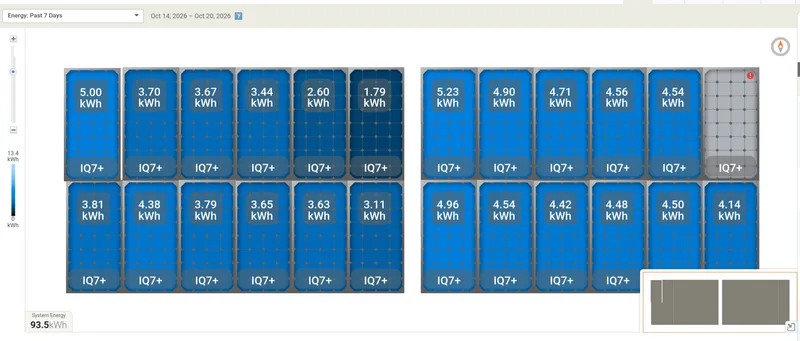
Keep in mind that monitoring data has a delay. If an issue only shows on today’s data, it’s likely a reporting issue, not a real production issue. Switch to the weekly and monthly views and confirm the panel is persistently low or missing before treating it as a failure.
Enphase IQ microinverters carry a 25-year warranty, and Enphase publishes a failure rate of about 0.05 percent, so a failed one is uncommon but not rare. The warranty covers the replacement unit. It does not cover the labor to get on the roof, find the right panel, lift it, and swap the microinverter, unless your installer’s own labor warranty is still in effect.
The replacement has to be registered to your system by an installer so the gateway recognizes it, which is why a homeowner can’t just buy one and swap it.
When it’s the gateway itself
The gateway is the part of an Enphase system most likely to need replacing before the panels do. Enphase warrants the Envoy and IQ Gateway for 5 years, against 25 for the microinverters. Sometimes these can get stuck in a boot loop (all four lights flashing), dropping off the cloud daily, or losing contact with the microinverters. A replacement is a wall-side job, done in an hour or two, and the new gateway picks up the existing microinverters after a device scan.
Getting help
If you’re within about 1.5 hours of Charlottesville and the steps above didn’t get you to green lights, our solar repair team works on Enphase systems from any installer, including ones whose original installer is gone. As a central Virginia solar company, we’ve been installing and servicing systems here since 2015. The most useful thing you can send with a service request is a photo of the LED strip in daylight and a screenshot of the array view in the app. Between the two we can usually tell whether it’s a Wi‑Fi problem, a gateway, or a microinverter before we schedule a visit.
For what these repairs typically cost, see our guide to solar maintenance costs.
Related Posts
Is Solar Dead in 2025?
Is it all over? Should we start building personal coal-plants? Don't worry! We cover where solar is at, what to expect, and how to keep going!
How Much Does Solar Cost in 2026? A Virginia Homeowner's Guide
Solar prices in 2026 for Virginia homeowners: cash at $2.50–$3.00/W, TPO at $0.11–$0.14/kWh, and payback in 10–13 years post-ITC. Full breakdown.

Is Richmond, VA Good for Solar?
Interested in RVA solar? See the solar panel incentives and potential that make Richmond, VA a great city for solar homes.